Do BYD cameras record?
Which models have BYD's own recorder, why the 360° cameras don't record, and recording with all four cameras without buying a dashcam.
Short answer: on BYDs with a rotating screen, press the screen button on the left of the steering wheel. If there is no button, the navigation bar on the screen or a voice command also works. For cars with no button on the steering wheel, Yoldaş's "Rotate screen" shortcut turns the screen with one tap.
Last updated: November 20, 2026
BYD manuals recommend using the screen in landscape while driving. CarPlay and Android Auto only work with the screen in landscape.
| Model | Rotating screen | How |
|---|---|---|
| Atto 3 (2022–2025) | Yes | Steering wheel button, on-screen button |
| Dolphin | Yes | Steering wheel button |
| Seal | Yes | Steering wheel button, on-screen button |
| Seal U DM-i | Yes | Custom button on the steering wheel |
| Sealion 7 | Yes | On-screen button |
| Atto 2 (early production) | On some | No button on the steering wheel; Yoldaş shortcut |
| Atto 2 (new), Atto 3 EVO, Sealion 5 | No, fixed landscape | – |
The table is compiled from BYD manuals and from what BYD owners report; the same model may differ by production year.
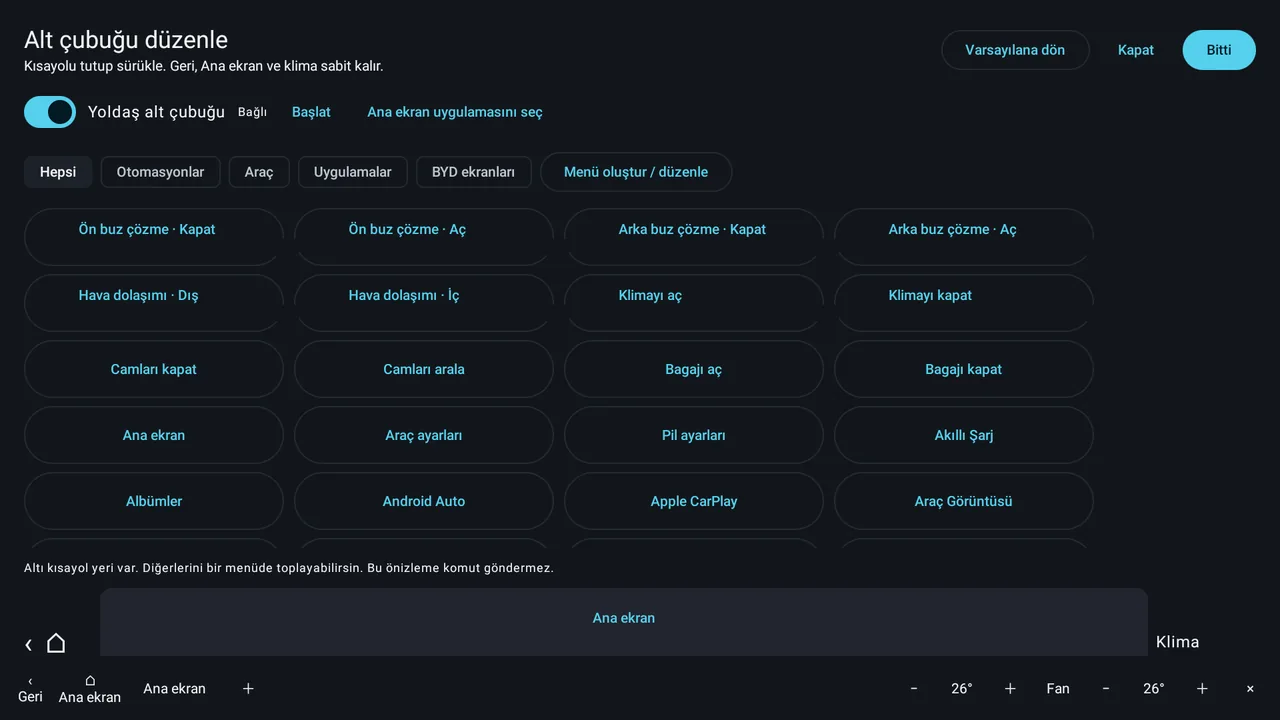
On some Atto 2s the screen rotates but there is no button on the steering wheel. Yoldaş's "Rotate screen" shortcut was made for these cars: tap the button you add to the bottom bar or the home screen and the screen turns between landscape and portrait. It works like the car's own rotate button; on cars whose screen does not rotate, the button appears greyed out and says why.
On BYDs with a rotating screen, press the screen button on the left side of the steering wheel (the two-rectangle icon). On some models the button in the screen's navigation bar or a voice command also rotates the screen.
No. On models such as the Atto 3, Dolphin, Seal, Seal U and Sealion 7 the screen rotates. With the new Atto 2, BYD began moving away from the rotating screen; on the Atto 3 EVO and Sealion 5 the screen is fixed in landscape.
On a BYD, CarPlay and Android Auto only work with the screen in landscape; if the screen is in portrait, turn it to landscape.
You can rotate the screen with one tap using the "Rotate screen" shortcut you add to the Yoldaş bottom bar or home screen. On cars whose screen does not rotate, this button appears greyed out.
Which models have BYD's own recorder, why the 360° cameras don't record, and recording with all four cameras without buying a dashcam.
Apps that are useful on the BYD screen for maps, music, video, dashcam and control from your phone.
Which apps are built into the BYD screen and which you install; Google Maps on the instrument cluster, YouTube while charging.
Which BYDs connect wired or wireless, how to connect, and putting the CarPlay map on the cluster behind the steering wheel.
Which markets have BYD's own sentry mode and which don't; watching your parked car with Yoldaş.
What the error messages mean, what changed in versions after 2310 and how apps get installed on a locked screen.
What a BYD update can do to installed apps, what to save before you install it and how to bring Yoldaş back afterwards.
Ways to open the 360° camera, the transparent chassis view, and watching and recording all four cameras from your phone.
What happens when the 12 V battery dies, how to get in, when BYD charges it on its own, and keeping an eye on the voltage.
Recommended cold tyre pressures model by model (bar, kPa, psi) and how to see the pressure on the screen or on your phone.
What to try against car-adding, connection and service errors in the official BYD app; a phone app independent of BYD.
How to recognize DiLink 5, the two install paths BYD owners use and the settings to turn on after installing.
How to find your DiLink generation and software version, and what the first digits of the version decide in Yoldaş.
Copy the APK to a USB stick on your computer and open it on the car screen. Step by step, with the permission prompt and common problems.
Calculate the hash of the APK you downloaded on your computer and compare it with the value on the download page.
A checklist for recording reliability, where data stays, language, installation and update signing.
Learn what triggers, conditions and steps mean, how to set up your first automation and how to import one from a file.
Enter a price for each charge and see trip cost based on what you actually paid.
Free during the pilot. Current version 0.15.33. See the steps in the install guide.