BYD Sentry Mode: person detection while parked
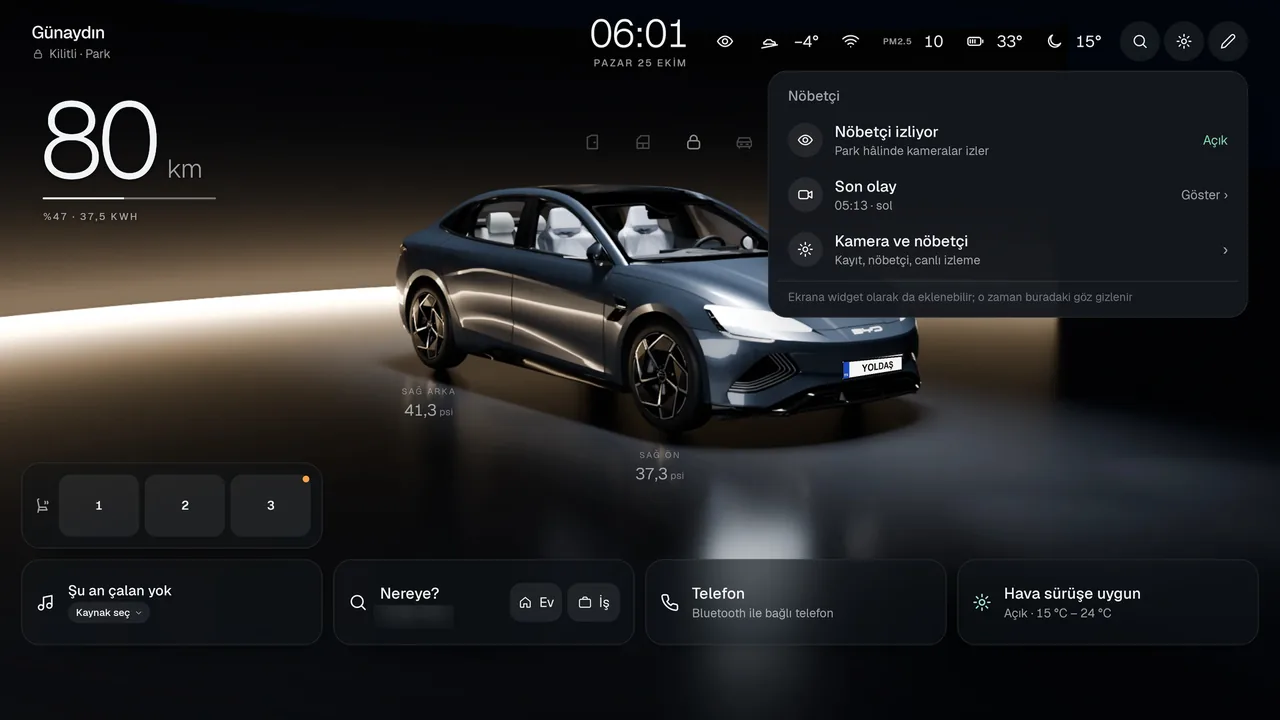
Yoldaş alerts your phone when a possible person appears on the camera you choose while your BYD is parked. Images are checked in the car and are never sent anywhere. It works on BYD models with DiLink, including the Atto 2, Atto 3, Dolphin, Dolphin Surf, Seal, Seal U, Sealion 7, Han and Tang.
Sentry can be wrong and may not see every event. It does not show how close something is or whether it is approaching. Do not rely on it as a security measure on its own.
Last updated: November 19, 2026
How does it work?
- About one small image per second is checked from the camera you choose, and every half second for frames in which movement is seen.
- First it looks for movement. Headlight glare and overall light changes are filtered out; small scattered changes are ignored.
- If there is movement, the image recognition model in the car sorts the image into person, animal and vehicle. The same box must appear in at least two frames and for at least 0.6 seconds; a very clear object can also be reported from a single frame.
- A parked car does not raise a "vehicle passed" alarm because of small movements such as raindrops; a vehicle is reported only if it really moves from its place or a new vehicle arrives. False large "person" boxes that fill the frame, such as the back of a car very close by, are not counted as people.
- When a possible person appears, the event is logged and you get a notification on your phone; the event also says which direction the camera faces (front, rear, left, right). For the same kind of object, no second alert is sent within one minute. Movement with no recognised object is handled separately.
Yoldaş does not recognize faces or identify anyone.
Phone notification
While parked, when someone may be near you, a clear notification reaches your phone within moments. The notification says which camera the image came from. Example:
"Right camera: A person was seen across several frames. If parked recording is on, you can watch the video in Recordings."
To watch the video, parked recording must be on: under Security › Recording and protection › Parked, choose "When Sentry detects" or "Continuous" (dashcam).
Radar and event tags
- Radar: the Security summary on your phone shows the direction of events detected around the car (front, rear, left, right) on a visual radar. An event whose location is unknown is still recorded; it just does not appear on the radar.
- Tags: events are sorted into person, animal and vehicle. Hard braking and moments you mark by hand also show with their own tag in Recordings. You filter the Recordings list by tag.
- Timeline: if a clip has more than one event, each one is marked on the timeline.
- Box and label: while a clip plays, the object that triggered the alarm is shown with a box and a "Person / Animal / Vehicle" label (in four-camera recordings, on new clips). The label is for display only and does not affect the alarm; the box is not burned into the video.
How to turn on sentry mode
- Choose the camera
On the Security tab in Yoldaş, choose the camera to watch.
- Download the model
Tap "Download model". The 4.6 MB recognition model downloads once. Any Wi-Fi or the car's mobile data is enough; it does not download only while roaming or on an unknown network.
- Turn on Sentry
Tap the "Sentry" switch on the Security tab once to turn it on; press and hold for 0.7 seconds to turn it off. Camera permission must be granted. Sentry starts watching when the car is switched off.
- Turn on phone notifications
On your phone, turn on Account › Notifications › Person observed while parked.
The image is split into 16 squares. You can exclude areas that are always moving, like a tree, from detection. This only affects detection, not the recording.
Settings: what to change and where
The settings are on the car screen (Security tab) and on the phone (Security › Settings, the gear icon); most are the same. Changes are saved automatically.
- Cameras: choose front, rear, left, right or all four from the car diagram on the Security tab. Under Sentry detection › Detection area you can also switch each camera on or off.
- What to detect: only people, people and animals, or people, animals and vehicles.
- Sensitivity: low, medium (balanced for most parking spots) or high.
- Ignore light and shadow changes: headlights, car-park lamps and cloud shadows do not count as motion.
- Also record and notify other motion: when on, motion with no recognised object is recorded and notified too. Branches in the wind, rain and passing cars can also create recordings and fill storage faster; turn it off if you prefer.
- Alert recording: set how many seconds before and after the event are kept (default 10 s before, 15 s after). Parking recording must be on.
- Detection area: distance (near, medium, far). Learn this parking spot lets Yoldaş find constantly moving places such as roads, trees and automatic gates by itself, and you confirm the result. Draw by hand (car screen only) lets you draw a rectangle, polygon or grid on the live view and ignore that region, or detect only inside it.
- Recording and protection: while parked: Off, When Sentry detects, or Continuous. With When Sentry detects, only the moments around an event are kept and the rest is held briefly and deleted. Driving recording is chosen separately. You can also choose the recording segment length (15 s, 1 min, 5 min; 15 s by default). A longer segment means fewer files and uninterrupted viewing; but a clip is ready only when its segment closes, and if recording is cut off that segment is lost.
- Safe places: the location where you park the car can be saved as a safe place. There you choose that Sentry does not run at all ("Sentry off") or runs silently ("Silent"); a time range can also be given.
- Recording quality: Normal or High. On the car screen it is under Recording and protection › Camera and quality; on the phone it is inside Sentry detection.
- Pet: tap the Pet card on the Security tab and the car screen shows a full-screen "My pet is inside" message; press and hold the screen to close it.
Alert on the car screen
When someone approaches the car, the car screen wakes up and shows an alert with the message you set. You turn the alert on and off from your phone. You can write a separate message for a person, an animal and a vehicle (up to 60 characters each). There are six ready colors each for the text and the background (on the phone you can also enter any color as #RRGGBB). The animation can be none, radar, eye or pulse; there are sound and "Show the camera" options; the duration is 5 to 30 seconds (in steps of 5). "Try the warning" shows a preview.
The alert only shows while the car is off, in P and stopped, and while watching is on. The screen alert needs the Yoldaş helper to be connected. This feature is experimental; if the car unit has fallen fully asleep, the alert may not work.
Manage it from your phone
You can turn Sentry on and off from your phone; the same conditions apply as in the car, and the result is read back from the car. Detections are listed on your phone under My car › Recent activity; events with a known direction also show on the radar in the Security summary.
Privacy
Detection runs entirely in the car. The small images it checks are not written to disk or the cloud. The event's time and type go to the server along with its direction, approximate angle, proximity class, Sentry state, model version and file summary; no face, box or person identity is sent. Details are on the security page.
For road and parking recordings, see dashcam. To see the cameras on your phone, see live camera.
Frequently asked questions
Does a BYD have Sentry Mode?
With Yoldaş, it does. Yoldaş watches the surroundings of your parked BYD with the car's own camera and sends a notification to your phone when a possible person appears.
When does Sentry Mode work?
It works while the car is off: it starts watching when you park and switch the car off, and it does not watch while the car is on. You can turn Sentry on and off from the car screen or from your phone.
Does the notification say which camera saw the person?
Yes. The event history and the phone notification say which camera the image came from (front, rear, left, right). Example: "Right camera: A person was seen across several frames. If parked recording is on, you can watch the video in Recordings." If a direction looks wrong, you fix it on your phone with "Map camera directions". If the direction cannot be determined, "Undetermined" shows.
What does the radar on my phone show?
The Security summary on your phone shows the direction of events detected around the car (front, rear, left, right) on a visual radar. An event whose location is unknown is still recorded and shows in the list; it just does not appear on the radar.
What can it tell apart?
It tells people, animals and vehicles apart. Hard braking and moments you mark by hand also show with their own tag in Recordings; you can filter the Recordings list by tag.
Does an alert appear on the car screen?
If you want. When someone approaches the car, the car screen wakes up and shows an alert with the message you wrote. You can write a separate message for a person, an animal and a vehicle, and set the color, animation and duration. The alert shows only while the car is off, in P and stopped, and while watching is on. This feature is experimental; it may not work if the car unit has fallen fully asleep.
Does it record when a person is seen?
Recording, the notification and the screen alert are separate preferences. To record while parked, under Security › Recording and protection › Parked, choose "When Sentry detects" or "Continuous". If Parked is "Off" and Sentry is on, the notification still comes but the clip is not saved.
Are the images sent anywhere?
No. Detection runs in the car. The small images it checks are not written to disk or the cloud; the event's time and type go to the server along with its direction, approximate angle, proximity class, Sentry state, model version and file summary. No face, box or person identity is sent.
Install Yoldaş in your car
Free during the pilot. Current version 0.15.33. See the steps in the install guide.